
- 首页
- About
- Products
- Download
- Support
- Applications
CNC Development Manual
How the Teach page configures its tables
Download the bilingual offline manual (ZIP, 8.7 MB; original-resolution screenshots included)
The previous lesson followed the sequence from entering parameters to generating a line, selecting it again, editing it, and loading the code. This lesson stays on the same Teach page and examines the tables: how one block of attributes creates repeated rows, how an input writes back to a parameter, how a cell changes between a text input and a list, and how a position-reading button appears inside an input.
All of these features already exist in the standard configuration. This lesson adds no teaching command and requires no C++ programming. In Qt Designer, find the relevant
QTableWidgetand inspect itsaccessibleDescription.QTableWidgetis the table's control type; this system usesaccessibleDescriptionto hold the table configuration text.中文版 ·
1. Identify the three table roles
Select Teach at the top, then Delay on the right. Use the Teach overview in the previous lesson to locate these areas. This lesson uses native close-ups; click an image in the browser edition to enlarge it.
Location Configuration file Table name Main purpose Program tab on the left env/teach/teach.uitableWidgetDisplays ten program positions per page; clicking selects a record Recipe tab on the left Same file formulaParamTableEdits recipe parameter names and values Instruction parameters on the right env/teach/ui/teach_7.uicodeParamTable7Delay parameters, data sources, and a selection checkbox Linear Motion parameters on the right env/teach/ui/teach_1.uicodeParamTable1Uses the same approach, with axis positions and position-reading buttons 
Click the screenshot to enlarge it. Full-resolution screenshots are included in the offline package.
Delay Time (sec) shows
1.250, its Data Source is Value, and Program line number is not selected. These are not three separately drawn, fixed inputs. The software creates them from parameter definitions and the table attributes explained below.The screenshots show the standard interface. Coordinates, filenames, and parameter values are examples; use the values appropriate to your configuration.
2. Read the complete Program table definition first
The following is the complete
accessibleDescriptionoftableWidgetinteach.ui. Designer displays the decoded attribute text. In the UI XML file, characters such as<and&may appear as XML escapes.{ -header:(#1104itemtitle14),0 -header:(#1104itemtitle15) -attr:-D } { -filter: -rows:10 -serial:0 -interval:1 -column: -T(%%+#1551channel*10+1) -C0(#1551!=(%%+#1551channel*10)) -C1(#1551==(%%+#1551channel*10)) -D -A: (clickedEvent:/env/teach/refreshnode1[0](#1551=%%+#1551channel*10)) -column: -T1(#1551itemdesc[%%+#1551channel*10]) -C0(#1551!=(%%+#1551channel*10)) -C1(#1551==(%%+#1551channel*10)) -D -A: (clickedEvent:/env/teach/refreshnode1[0](#1551=%%+#1551channel*10)) }Read it as two parts. The first
{…}describes the headers and the table-wide attributes. The second describes the repeated rows and their columns. Two-column:entries define two columns; there is no need to write twenty separate controls for ten rows.Original setting Meaning here -header:(#1104itemtitle14),0The language text supplies No.; width 0with no explicit resize mode fits the contents-header:(#1104itemtitle15)The title is Program body; omitting the width uses stretch sizing -attr:-DIncludes the whole table in dynamic updates; a column's -Dapplies to its cells-filter:No row filter is specified, so all ten positions are created -rows:10Creates ten positions; it does not mean ten program lines already exist -serial:0Starts the sequence substituted for %%at0-interval:1Uses step 1for the separate base-number calculation; this table's paging formula uses%%directly-T(...)Supplies cell content; a bound parameter item can also determine the input type -T1(...)Displays the program text without making the cell a code editor Think of
%%as a loop index in a macro:0for the first generated row,1for the second, and so on through9. It does not mean the row currently selected by the operator. The current program position is stored separately in#1551.The system also calculates a base number. For repetition
j, starting at0, the sequence number isserial+jand the base number isserial+j×interval. Changing-intervalto10would not replace the paging formula used here. Pages advance through#1551.channel*10.3. How ten display positions show program line 11
Three values have separate jobs:
#1551.channelholds the page number,#1551holds the selected program index, and%%identifies the position being created on that page. Page numbers and stored indices start at0.Case #1551.channel%%Stored index: %%+page×10Displayed number: index plus 1First row, first page 0 0 0 1 Third row, first page 0 2 2 3 First row, second page 1 0 10 11 Second row, second page 1 1 11 12 To demonstrate this, the verification starts with an empty program, generates twelve lines using the previous lesson's
1.25-second delay, and then clicks line 11:
Click the screenshot to enlarge it. Full-resolution screenshots are included in the offline package.
Here
#1551.channel=1and#1551=10. The blue row is stored record10. Position 13 is empty because only twelve lines have been generated.Press Previous Page. The page number becomes
0and the selected index becomes0:
Click the screenshot to enlarge it. Full-resolution screenshots are included in the offline package.
The original button uses
MouseButtonReleaseto callenv/teach/pageup. The complete script is:#1500.channel=0 #1551.channel=#1551.channel-1 IF#1551.channel<0THEN#1551.channel=0 #1551=MOD[#1551,10]+#1551.channel*10 widgetFunc["SysFunc","0","parser","/env/teach/parsenode"]MOD[#1551,10]preserves the position within a page, then adds the new page's starting index. The first page is clamped at zero. Finally,parsenoderestores the right-hand parameters for the new selection. Changing only the displayed numbers would leave the selected record and its parameter page out of step.4. Clicking a row and highlighting it work together
Both columns in the Program table contain this action:
-A: (clickedEvent:/env/teach/refreshnode1[0](#1551=%%+#1551channel*10))For the first row on the second page,
%%=0. Clicking assigns#1551=10before enteringrefreshnode1. That script handles the selected record; the previous lesson explains parameter restoration. Clicking the same record again can also reach the script's menu branch, so every click does not necessarily perform the same operation.The highlight comes from two separate conditions:
-C0(#1551!=(%%+#1551channel*10))
-C1(#1551==(%%+#1551channel*10))
An unselected row uses style
0; the selected row uses style1. In the current standard style, the latter is white text on blue. The original table hasNoSelectionset, so this highlight comes from the configuration conditions rather than Qt's own selected-row appearance.Notice the punctuation:
-C0(...)selects style0. Later,-C,0(...), with a comma, selects content alternative0from the list of-Tentries.5. Recipe: one index, separate name and value fields
Open Recipe on the left. In row 1, change the name to Delay time and the value to
1.25. Press Enter after each edit:
Click the screenshot to enlarge it. Full-resolution screenshots are included in the offline package.
The other names remain
Parameter2andParameter3, as stored in this configuration. Recipe names are editable data; changing the interface language does not imply that previously stored names will also be translated.This table also uses ten-row pages, but its current page and selection are
#1550.channeland#1550. The three columns' central definitions are:-T(%%+#1550channel*10+1)-T5(#1550itemtitle[%%+#1550channel*10])-T2(#1550item[%%+#1550channel*10])For the first row on the first page, the name input writes to
#1550.itemtitle[0], while the value input writes to#1550.item[0].-T5specifies editable text and-T2specifies real-number input. Both use the same index but address different fields.The system writes a committed input back through its parameter binding. Each cell therefore does not need a separate assignment script. This changes the parameter in memory; it does not save a recipe file. Use the existing Save recipe button to retain it in a file. The complete original Recipe table attributes are available for comparison.
6. Calculate which parameter group the right-hand table edits
The Delay and Linear Motion parameter tables follow the same approach: look up the current teaching command, then find that command's parameter group. Resolve this lookup before reading the longer expressions.
Command Current command #1500#1500.item[#1500]Working values Companion settings Delay 6 1513 #1513#1514Linear Motion 0 1501 #1501#1502For Delay,
#[#1500.item[#1500]].item[1]therefore means#1513.item[1]. Adding one to the group number gives#[#1500.item[#1500]+1].item[1], or#1514.item[1].Field Use in this teaching configuration Working group's .item[...]Entered value or selected index Working group's .itemtitle[...]Row label, such as Delay Time (sec) Working group's .itemversion[...]The row's data-source selection Working group's .itemdesc[...]A fixed marker deciding which data-source choices are offered Companion group's .item[...]Whether the row is selected, for example whether an axis word is included Companion group's .itemmin[...]A row-display category, such as a general row or an axis row Companion group's .itemversion[...]Input category or axis number used for reading a position These meanings are conventions used by the teaching scripts. Here
.itemmindoes not mean the minimum permitted input. The two groups'.itemversionfields also have different jobs. Do not apply another parameter window's interpretation solely because the field names look familiar.7. Filtering rows does not renumber their parameters
Select Linear Motion on the right:
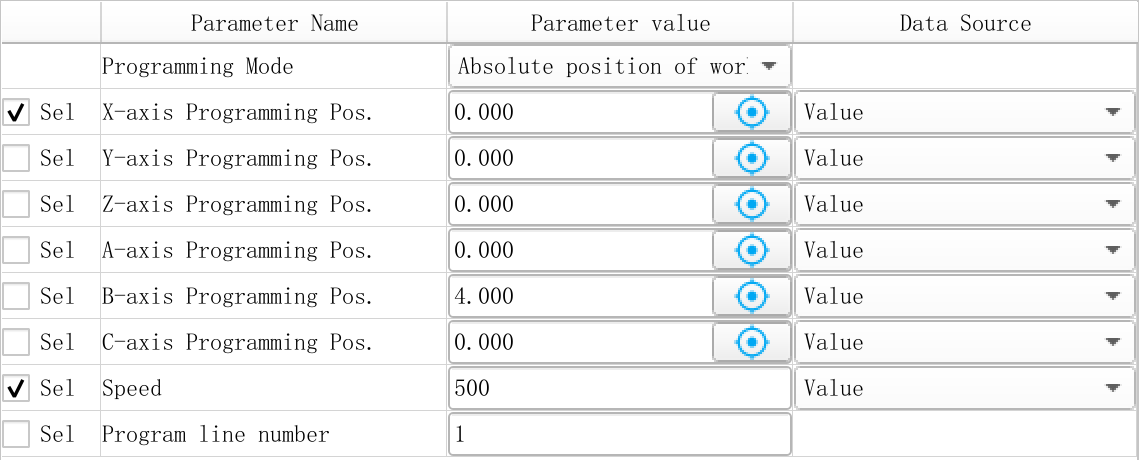
Click the screenshot to enlarge it. Full-resolution screenshots are included in the offline package.
-rows:#[#1500.item[#1500]].itemnumexamines the working group's items.-filter:decides which ones appear. The current Linear Motion group contains ten items, but this image shows nine rows.Original item index Current companion .itemminDisplay decision Position in this image 0 7 Does not satisfy this page's condition Hidden 1 0 General row, shown First row: Programming Mode 2 1 Checks #912.itemmax[0]==1Second row: X-axis Programming Pos. 3–7 2–6 Checks #912.itemmax[1]through[5]by axisRemaining axis-position rows 8 and 9 0 General rows, shown Speed and Program line number The first visible row uses
%%=1; the second uses%%=2. Removing item0from view does not renumber the remaining items. This is why their inputs and buttons still address the correct parameters.The original filter also has branches for command
#1500==14. It cannot be reduced to “check whether the axis is enabled.” See the complete original Linear Motion table attributes. Runtime checks here cover the current Linear Motion and Delay pages; other command branches require their own verification.8. How one column offers different input types
These are the
-Tforms used in this example:Form Behavior here -T(expression)Automatic matching; bound parameter items use their defined type, while titles and ordinary results supply display text -T1(...)Text display, as in Program body -T2(...)Real-number input, as in recipe values and axis inputs with position buttons -T3(...)Integer input, used for a recipe index when the recipe has more items -T4(target<<option source)A list that writes the selected option index to the target -T5(...)Editable text, as in recipe names -T11(target<<label)A checkbox, such as Sel The numbers
2,3, and4are this system's type identifiers, not decimal-place counts. The actual integer and real-number cells are text inputs. The type name does not prove that a control has spin arrows or automatically enforces a numeric range.The right-hand Parameter value column contains seven alternative
-Tentries. This is the complete column block fromteach_7.ui:-column: -T4(#[#1500.item[#1500]].item%%<<#1550) -T(#[#1500.item[#1500]].item%%) -T2(#[#1500.item[#1500]].item%%<<"icon/local.png"<<0<<"/env/teach/localpos"<<#1104itemtitle24<<#11=%%) -T4(#[#1500.item[#1500]].item%%<<#1031) -T4(#[#1500.item[#1500]].item%%<<#1032) -T4(#[#1500.item[#1500]].item%%<<#1104itemtitle29<<#1104itemtitle30<<#1104itemtitle31<<#1104itemtitle32<<#1104itemtitle33<<#1104itemtitle34) -T3(#[#1500.item[#1500]].item%%) -C(#319.item3==1) -R0 -C,0(((#[#1500.item[#1500]].itemversion%%==1)||(#[#1500.item[#1500]+1].itemversion%%==9))&&(#1550itemnum<=20)) -C,6((#[#1500.item[#1500]].itemversion%%==1)||(#[#1500.item[#1500]+1].itemversion%%==9)) -C,5(#[#1500.item[#1500]].itemversion%%==2||#[#1500.item[#1500]].itemversion%%==3) -C,1(#[#1500.item[#1500]+1].itemversion%%==0) -C,3(#[#1500.item[#1500]+1].itemversion%%==7&&#[#1500.item[#1500]].item0==0) -C,4(#[#1500.item[#1500]+1].itemversion%%==8&&#[#1500.item[#1500]].item0==0) -C,2(1) -DThe content alternatives are numbered
0through6in their written order. The subsequent-C,index(condition)entries are evaluated from top to bottom; the first true content-selection condition wins. The final-C,2(1)always matches and supplies the fallback. Moving it to the top would prevent the later choices from being reached.Alternative Content Conditions that select it 0 Recipe choices named from #1550itemsRecipe-index mode with at most 20 recipe items 6 Integer input Recipe-index mode when the earlier count condition did not match 5 Six axis choices Working data-source value is 2 or 3 1 Automatic matching from the parameter definition Companion item's .itemversion==03 and 4 Choices supplied by #1031or#1032The respective category and working-item-0 conditions in the original block 2 Real-number input with a position-reading button Final fallback This explains the original branches; it does not make every alternative appropriate for every command. In Figure 1, automatic matching makes Delay Policy a list and Delay Time (sec) a numeric input.
The block also has a separate editing restriction.
-C(#319.item3==1)defines condition0, which-R0references. In the current source, when the parser-start flag is 1, text inputs in this column become read-only and lists become disabled. The0in-R0is a condition index, not a content-alternative index. It does not establish that every child button inside an input is disabled. Machining was not started here, so this state-dependent behavior is source-confirmed but has not been exercised at runtime.9. What changes when Value becomes Recipe Parameter Index
Keep recipe item 1, Delay time, at
1.25. In the Delay parameter table, change the time row's Data Source to Recipe Parameter Index, then choose Delay time in the value list:
Click the screenshot to enlarge it. Full-resolution screenshots are included in the offline package.
Three different values are now involved:
Parameter Value Meaning #1513.itemversion[1]1 Recipe-index mode is selected #1513.item[1]0 Recipe item 1 is selected; its stored index is 0#1550.item[0]1.25 The actual time stored in the recipe The list displays a name, while the working parameter stores an index. The name Delay time, index
0, and time1.25are different things. After changing the source, explicitly choose the intended item. Do not assume the previous time value is automatically converted to the intended recipe index.The data-source column binds the working item's
.itemversion. It uses the fixed.itemdescmarkers可配置源and可配置源1to decide which choices to offer. These markers remain Chinese in the English edition because scripts compare their exact contents. Translate the display-language fields, not these condition markers.The original Delay generation script chooses between a constant and a recipe reference:
IF^11.itemversion[1]==1THEN#1558.item[2]="P"+"INT[#1550.item["+INT[^11.item[1]]+"]*1000]"
IF^11.itemversion[1]==0THEN#1558.item[2]="P"+INT[^11.item[1]*1000]
With these values and Single line delay, the generated code is
G04PINT[#1550.item[0]*1000]. It retains a recipe reference, unlike the fixedG04P1250. Follow the complete example of generation, recall, recipe changes and NC evaluation in Teach recipe references.10. Why more than 20 recipe items gives an integer input
On the left Recipe tab, change Recipe sheet parameters number: to
21and press Enter. The original input binds#1550.version. Enter runsenv/teach/refreshFormulaParamTable, which adjusts.itemnumto that count and prepares names and types for new items.Next, switch the right-hand row back to Value, then to Recipe Parameter Index again. This uses the original change event to rebuild the input:

Click the screenshot to enlarge it. Full-resolution screenshots are included in the offline package.
#1550.itemnum<=20is now false, so alternative0is skipped. The next condition still matches and selects alternative6, the-T3integer input. Entering0here means recipe item 1, not a zero-second delay.This explains the page's explicit refresh event:
-A:(comboBoxChanged:/env/teach/ui/refresh7[0])The complete
refresh7script is:widgetFunc["QTableWidget","codeParamTable7","refresh",""]Linear Motion uses
refresh1andcodeParamTable1. This call reparses and rebuilds the table content;-Dparticipates in routine display updates. Their roles differ. The count-change script directly refreshes the left-hand Recipe table, so this procedure also changes the right-hand data source to explicitly rebuild that parameter table.Routine dynamic updates should not be treated as a promise to rebuild every input whenever a condition changes. Check the explicit refresh when changing control type, or changing which rows pass a filter while leaving the visible row count unchanged. The source's ordinary automatic table refresh compares the filtered row count; that alone does not establish automatic rebuilding for every same-count substitution.
This verification covered the change from 20 to 21 items. An integer input does not establish that its index is valid. Being able to type
21or a negative number does not make that item accessible; the index must refer to an existing item. Reducing the count also reduces the recipe's item count, so retain the original recipe before practicing.11. How the button inside an input knows which row to write
Return to Linear Motion, keep Data Source at Value, and use Absolute position of workpiece for Programming Mode. A blue circular icon appears at the right end of X-axis Programming Pos. Alternative
2creates it together with the input:-T2(#[#1500.item[#1500]].item%%<<"icon/local.png"<<0<<"/env/teach/localpos"<<#1104itemtitle24<<#11=%%)Read the six parts separated by
<<:Part Meaning here #[#1500.item[#1500]].item%%Numeric parameter displayed and written by the input "icon/local.png"Icon path; this loader adds images/, so the resource isimages/icon/local.png0Uses the main Qt script execution channel for this button "/env/teach/localpos"Script called by the button #1104itemtitle24Language text for the hover hint, Grab current location #11=%%Passes this cell's original parameter index to the script For the second visible row,
%%=2, so the button writes#11=2, not1.localposthen reads#1502.itemversion[2]=1to identify the first axis.This is the complete
env/teach/localposscript:N1 IF[#1500==0]*[#[#1500.item[#1500]].item[1]==2]GOTO3 IF#1500==14GOTO4 #[#1500.item[#1500]].item[#11]=#300.item[35+#[#1500.item[#1500]+1].itemversion[#11]] GOTO2 N3 #[#1500.item[#1500]].item[#11]=#300.item[#[#1500.item[#1500]+1].itemversion[#11]-1] GOTO2 N4 #[#1500.item[#1500]].item[#11]=#300.item[35+#[#1500.item[#1500]+1].itemversion[#11]] N2For the current Absolute position of workpiece setting, substituting these values into its main assignment gives:
#1501.item[2]=#300.item[36]Here
36=35+1. In Linear Motion's absolute position of machine mode, the script instead takes branchN3and reads#300.item[0]for the same axis. The button therefore does not always read the same coordinate group. Other modes must be understood from their actual branches.For this offline check, the first axis's displayed workpiece position was set to
12.345at the moment of reading. Clicking the original button put that value into the input:
Click the screenshot to enlarge it. Full-resolution screenshots are included in the offline package.
The selected mode's long English label is clipped by the native list width in this close-up; its full option text is Absolute position of workpiece. The original UI text has not been replaced to fit the image.
localposreads a coordinate and writes a working parameter. It does not call NC motion and does not turn the input into a recorded program line. Recording still uses Generate code line, as in the previous lesson. Figure 8 does not show a physical machine moving to12.345.12. Sel stores a separate value
The first column's checkbox binds the companion group:
-T11(#[#1500.item[#1500]+1].item%%<<#1104itemtitle23)With
%%=2, this writes#1502.item[2]; the coordinate input writes#1501.item[2]. Clearing Sel leaves the coordinate12.345intact:
Click the screenshot to enlarge it. Full-resolution screenshots are included in the offline package.
The X-word part of the original line-generation script,
env/teach/line, is:IF^12.item[2]==0GOTO4 #1552.item[3]="X" IF^11.itemversion[2]==0GOTO3 #1552.item[3]=#1552.item[3]+"#1550.item["+INT[^11.item[2]]+"]" GOTO4 N3 #1552.item[3]=#1552.item[3]+^11.item[2] N4Before entering this script,
addcodesets#11=1501and#12=1502.^11and^12refer indirectly to those groups. The first statement skips the X word when it is not selected; clearing the checkbox therefore does not require clearing the coordinate.13. A practical order for reading similar tables
Find the table name and
accessibleDescriptionin the UI file. Calculate the current command's parameter groups. Then read-rowsand-filterto establish the actual indices. Finally, read each column's-Tentries, selection conditions, and actions. Substitute concrete numbers into long expressions as shown above and check one column at a time.Symptom First checks Records beyond the first ten cannot be found Separate page number, %%+page×10, and the display-only+1Clicking gives the wrong highlight or parameter page Check the assigned #1551,refreshnode1, and both columns' highlight conditionsA name cannot be edited Editable names need -T5, not text-display-T1Choosing a recipe name is mistaken for storing a time Inspect the working index, then #1550.item[index]The wrong content alternative is always used -C,indexis zero-based; the first true content-selection condition winsChanging the source does not change the control type Check that comboBoxChangedcalls the refresh script for the correct table nameA button writes to the wrong item after an axis is hidden Pass the original parameter sequence %%, not the visible row numberThe source column disappears after translation Check that fixed markers such as 可配置源were not translatedA coordinate does not produce its axis word Check Sel in the companion group; entering a value does not select it A typed index causes an error Check the item count and index range; an input type is not complete validation Committed edits disappear when a recipe is reopened Check that Save recipe actually saved the file The three table roles now fit together: the Program table chooses a record, Recipe supplies reusable names and values, and the right-hand table determines how to enter each parameter. They share the same table-configuration approach, with teaching scripts handling recording, restoration, and code generation.
Previous: The basic Teach workflow · Next: Line and Spatial Arc · Reading guide
在线咨询 - Download
