
- 首页
- About
- Products
- Download
- Support
- Applications
CNC Development Manual
How coordinate fields display, accept and apply values
Download the bilingual offline manual (ZIP, 8.7 MB; original-resolution screenshots included)
The previous lesson explained how whole coordinate rows appear or disappear. Here we follow one familiar field: the X work coordinate under Relative on the main screen. Normal display, click, typing, Return and exit reveal how the original field works through a few macro-style rules.
This lesson uses the standard coordinate fields and their scripts. Values such as 125, 24 and 12.5 are teaching examples that distinguish the current coordinate, text being entered and the value passed to the confirmation script.
Before entering a coordinate, release reset and wait until the system is idle. If the status reads Reset, use the software's existing reset control to release it. Once idle, click the work coordinate field, enter the value and press Return. Reset blocks subsequent MDI execution; the ability to type into the field does not mean that the coordinate setting has been applied.
1. Similar fields have different jobs
Click the screenshot to enlarge it. Full-resolution screenshots are included in the offline package.
X field Original widget name Editable? Original purpose Under Mechanical lineEdit_10Read-only Continuously display the mechanical coordinate Under Relative lineEdit_19Editable Normally display the work position; accept temporary input during editing Third column lineEdit_11Read-only Select RTCP position, remaining distance or zero according to conditions These are the actual English headings. “Work coordinate” in this lesson refers to Relative. The UI property
readOnlyistruefor the first and third fields andfalsefor the middle one. Being a QLineEdit does not mean that all three edit the same kind of coordinate.The mechanical field has simple attributes:
-T(#300.item30)
-D
The text, values and status lesson already covered it. We will concentrate on the middle, editable field.
2. Read the complete original X field attributes
In
env/maininterface/maininterface.ui, theaccessibleDescriptionoflineEdit_19is:-T2(#2502) -T2(#300_item6-#324_item8+#309_item0) -C,1(#1006item0==0) -C,0(#1006item0==1) -D -事件: (clickedEvent:/env/edit_x[1]) -事件: (FocusOut:/env/edit_x_exit[1]) -事件: (Esc:/env/edit_x_exit[1]) -事件: (Return:/env/edit_x_end[1])The original
-事件:keyword is retained exactly; it is part of the configuration syntax, not an untranslated UI label. Read the block in three parts: two possible contents, rules selecting and refreshing the contents, and scripts for four events.Original notation Meaning here First -T2(...)Content candidate 0: temporary parameter #2502Second -T2(...)Content candidate 1: the work coordinate expression The 2 in -T2Real-number type, not the candidate index or a fixed two decimal places -C,1(condition)Select content candidate 1 when the condition is true -C,0(condition)Select content candidate 0 when the condition is true -DParticipate in dynamic text updates, subject to focus and other rules Four events Handle click, loss of focus, Esc and Return The current real-number display uses three decimal places when
#330.item[8]=0and four when it is 1. This example uses three. The 2 in-T2, the 1 in-C,1, and[1]after an event name mean type, content index and channel respectively.3. Why the normal value is 24.000
#1006.item[0]is the X editing flag: 0 selects normal display; 1 selects this example's temporary input state.When it is 0, this condition matches first:
-C,1(#1006item0==0)The field therefore reads the second content candidate:
#300_item6-#324_item8+#309_item0It does not directly read mechanical display position
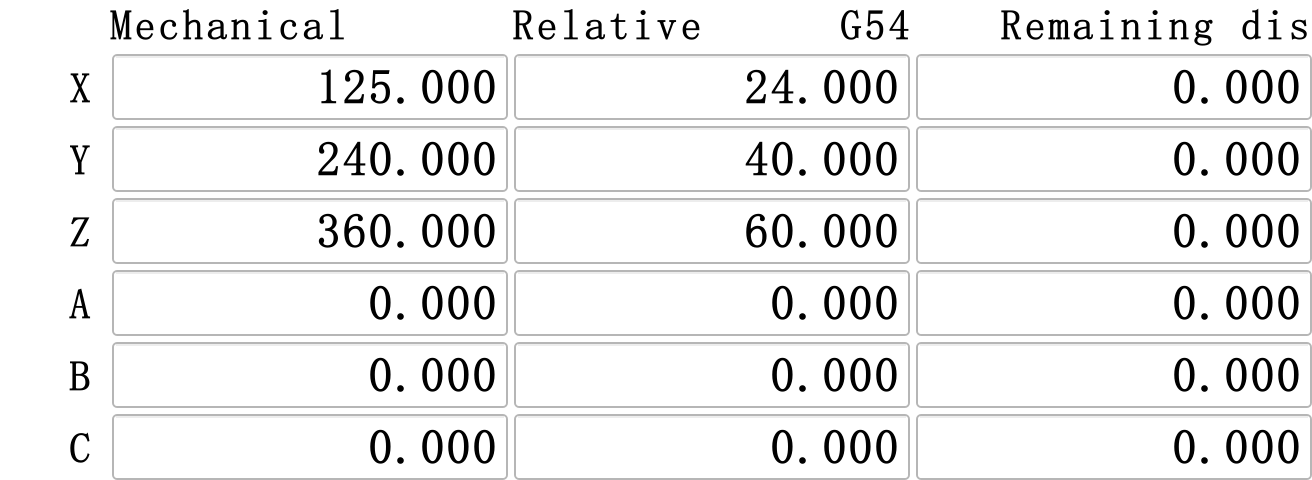
#300.item[30]. Its terms are the X work position, X tool-length compensation value and X G52 offset. Use these example values:Parameter Example value #300.item[6]25 #324.item[8]3 #309.item[0]2 Thus Figure 1 shows
25-3+2=24.000. The example Mechanical value 125 comes from#300.item[30]. The two fields read different parameters; do not substitute the Mechanical value directly into this work coordinate expression.#300_item6in the attribute and#300.item[6]in scripts reference the same parameter item. Use this correspondence when reading UI attributes alongside scripts.4. Clicking first changes where input will be written
Clicking the X field calls the original
env/edit_x:IF#319.item[3]==1GOTO1 #2502=0 #1006.item[0]=1 N1If the start flag is 1, it skips the change. Otherwise it clears the temporary parameter and sets the X editing flag to 1. The content candidate changes from the normal coordinate to
#2502; subsequent input submission uses that temporary binding.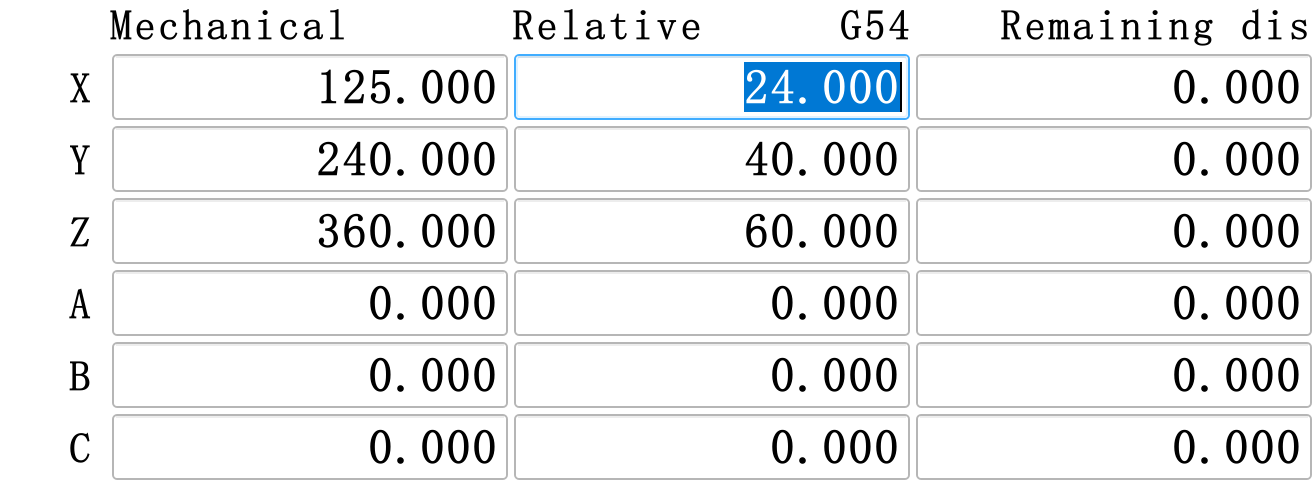
Click the screenshot to enlarge it. Full-resolution screenshots are included in the offline package.
Distinguish the temporary parameter from screen text: setting the temporary parameter to zero does not make the displayed text immediately become 0.000. Figure 2 retains and selects 24.000, ready for replacement. Ordinary editable fields with focus are protected from dynamic text replacement.
Type the intended value to replace the selected text. To understand the design, follow both the active parameter binding and the field's editing state.
5. Why live coordinates do not overwrite your typing
Enter
12.5: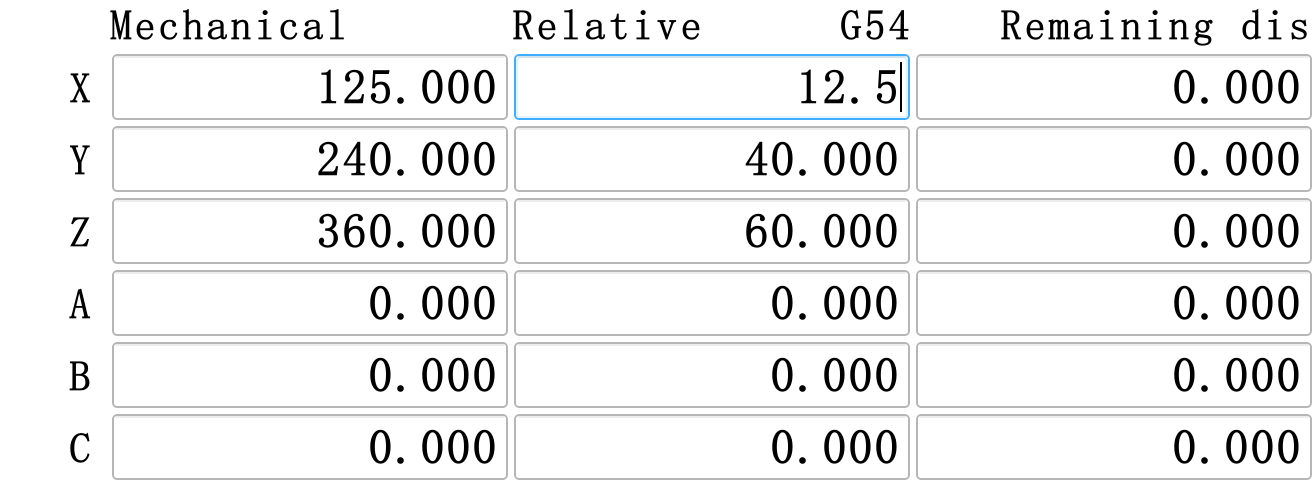
Click the screenshot to enlarge it. Full-resolution screenshots are included in the offline package.
Original QLineEdit update handling permits refresh when the field lacks focus, or when it is read-only and has no selected text. The X work coordinate field is editable and focused, so it retains the text being entered.
Distinguish these three values:
Location After typing 12.5, before confirmation Text in the field 12.5Temporary parameter #2502Still 0 from the click script Normal work coordinate expression Still evaluates to 24 The original control does not call
edit_x_endfor every keystroke. A submission event transfers the text to the bound parameter. A partially typed number is therefore not treated as a complete coordinate-processing request.6. Esc and loss of focus exit differently
Both events call
env/edit_x_exit, whose entire original body is:#1006.item[0]=0This selects normal coordinate display again. The difference lies in what happens before that script is called.
Pressing Esc
Press Esc from Figure 3: the field returns to 24.000,
#2502remains 0, and no new coordinate-processing request is produced.Click the screenshot to enlarge it. Full-resolution screenshots are included in the offline package.
The original Esc branch calls the exit event, resets text using the current candidate, and clears focus.
Leaving the field
Click X again, enter
18.25, then move focus away. The field returns to 24.000 and#1006.item[0]returns to 0, but temporary parameter#2502becomes 18.25.Click the screenshot to enlarge it. Full-resolution screenshots are included in the offline package.
When text has changed, the original FocusOut handling can submit the bound parameter before calling the FocusOut script. Here the binding is a temporary parameter. The exit script does not call
edit_x_end, so no new coordinate-processing request is created.Operation Contents of #2502X editing flag New coordinate-processing request? Type 12.5, then Esc 0 Returns to 0 No Type 18.25, then leave the field 18.25 Returns to 0 No Type 12.5, then Return 12.5 Returns to 0 Yes; explained next Neither of the first two actions confirms a coordinate change, but leaving the field affects the temporary parameter. All six axes share
#2502; when designing similar fields, keep temporary input separate from confirmation handling.7. Return submits the number before calling the confirmation script
Click X again, enter 12.5 and press Return. Original handling proceeds in this order:
- Read the field text and submit it through the current content binding,
#2502here. - Call the Return script,
env/edit_x_end. - Refresh the displayed text using the state left by the script, then clear input focus.
The current
env/mainsets#1006.item[6]=0. In this standard mode,edit_x_endchecks the X editing state, clears it, copies the temporary value, specifies an NC filename and sets request flags. The complete original script is below; section 10 explains the other mode branch:IF#1006.item[0]==0GOTO1 #1006.item[0]=0 IF#1006.item[6]==1GOTO2 #2503=#2502 #404="edit_x.nc" GOTO4 N2 IF#319.item[11]==1GOTO3 #[#337.item[1]].item[23]=#2502-#300.item[6]+#324.item[8] GOTO1 N3 #2503=#2502 #404="gotozero_x.nc" N4 #319.item[10]=1 #319.item[3]=1 N1After entering 12.5 and pressing Return, the confirmation script passes the data as follows:
Parameter Value passed Purpose #1006.item[0]0 X has left edit state #250212.5 Submitted input #250312.5 Value handed to subsequent coordinate processing #404edit_x.ncProcessing filename #319.item[10]1 Select MDI execution mode #319.item[3]1 Start flag The confirmation script supplies the value and processing filename; NC processing then applies the coordinate setting. While the start flag is 1,
edit_xskips the assignments that enter edit state, although the field can still take focus. When customizing, consider the script's state conditions separately from whether the widget allows input.#319.item[10]selects MDI mode; it does not by itself mean that execution is still in progress. When this operation finishes,#319.item[3]returns to 0 and the interface returns to idle. The MDI mode flag can remain 1.Distinguish the reset request,
#319.item[1], from the reset state,#319.item[6]. When the latter is 1, the NC interpreter cannot start an MDI file. Setting the MDI and start flags does not remove that restriction, and the originaledit_x_enddoes not release reset. If you have already pressed Return while in reset, release reset, wait until idle, then enter the value and press Return again. Do not treat the previous request as a queued task that will automatically run later. When customizing coordinate input, keep the existing reset operation; do not force the reset state off in the confirmation script.8. Set the work coordinate of the current point to the entered value
This function keeps the machine at its current position and assigns the entered value to that point's X work coordinate. Entering 0 makes the current point X zero; another value assigns that X work coordinate to the same point. The software does this by adjusting the offset of the current work coordinate system.
The original
env/edit_x.ncuses thisG91G92statement:G91G92XREAL[#2503]-#300.item[6]+#324.item[8]Read it in two steps: calculate the required coordinate change, then use
G91G92to adjust the coordinate offset so that the current point receives the entered work coordinate.Part of the original statement Purpose here REAL[#2503]Convert the confirmed input text to a real number: the desired coordinate value -#300.item[6]+#324.item[8]Account for the current X work position and tool-length compensation to calculate the required coordinate change G91G92X...Apply that change to the current work coordinate system's offset while keeping the machine at its current position For a simple example with additional offsets and tool-length compensation set to zero, suppose the current X work coordinate is 24 and the user enters 12.5. The expression gives
12.5-24+0=-11.5. After execution, the same point is assigned X=12.5; the machine does not need to move to another position. This calculation uses zero compensation, unlike the display calculation example in section 3.Figure 6 shows this example after Return has completed the setting: X under Relative is now 12.500, while X under Mechanical remains 125.000. The G54 X offset was 101 and becomes 112.5, so the same mechanical position now has work coordinate
125-112.5=12.5. Y, Z and the other axis coordinates remain unchanged.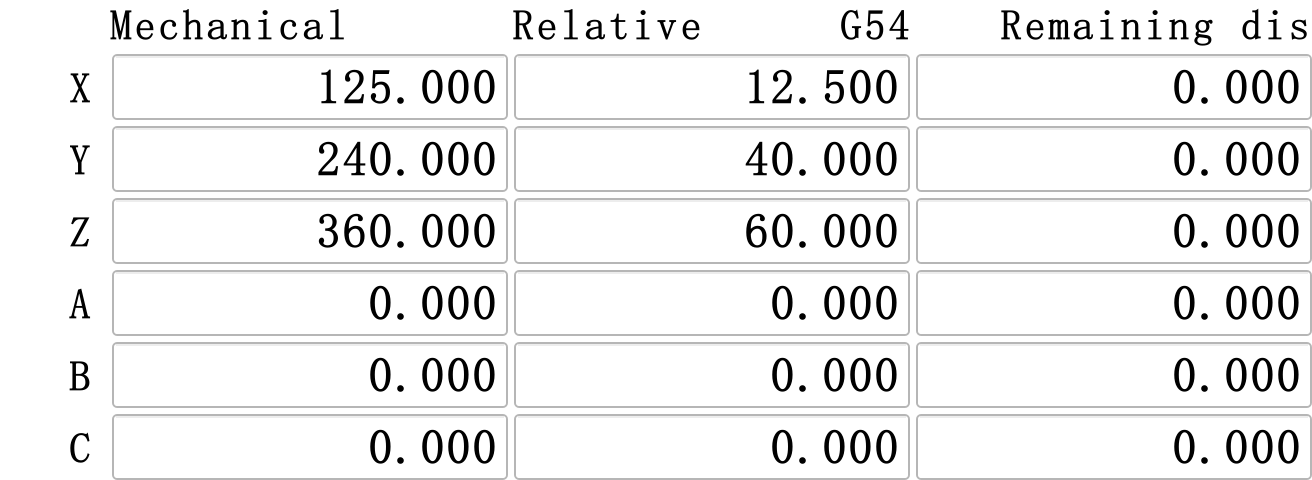
Click the screenshot to enlarge it. Full-resolution screenshots are included in the offline package.
The complete operation is therefore: enter the coordinate to assign to the current point → submit with Return → the original NC statement adjusts the coordinate offset → the interface reads back the new work coordinate. See coordinates for coordinate groups and offsets, and machining scheduling for subsequent request handling.
9. Why the third heading and value change together
The third column is not another editable work coordinate. Heading
label_25has these relevant rules:-T(#1100itemtitle28) -T(#1100itemtitle29) -C,1(#330item39==1||#945item0==1) -C,0(1)Read the actual language pack to identify the candidate order:
itemtitle28is Remaining dis anditemtitle29is RTCP Coord. If#330.item[39]or#945.item[0]is 1, candidate 1 selects RTCP Coord.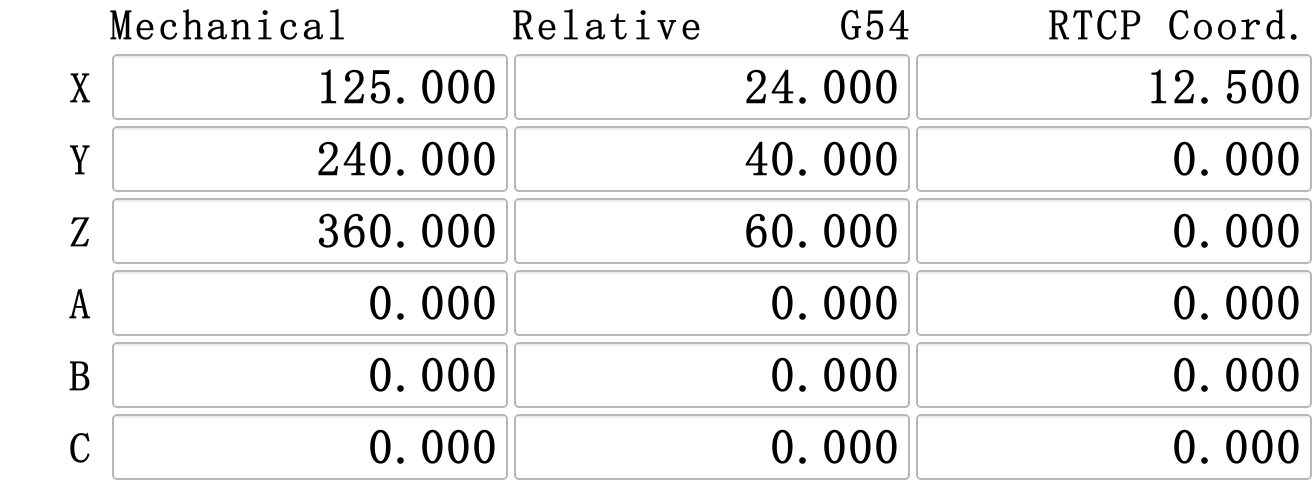
Click the screenshot to enlarge it. Full-resolution screenshots are included in the offline package.
The complete original attributes of X field
lineEdit_11are:-T(#300.item12) -T(#357item134-(#300item36-#357item54)) -T(-#357item134+(#300item36-#357item54)) -T("0.000") -C,0(#330item39==1||#945item0==1) -C,1(#319item3==1&Ŀitem11==0&ťitem134>=0) -C,2(#319item3==1&Ŀitem11==0&ťitem134<0) -C,3(1) -DConditions are read in order. The first true condition that specifies contents selects the candidate; later true conditions do not overwrite it.
Order Condition Contents 1 RTCP display condition #300.item[12], not#300.item[42]here2 Started, not simulation, nonnegative node X displacement Displacement minus the position difference in the formula 3 Started, not simulation, negative node X displacement The original formula for the negative direction 4 None selected above Fixed text 0.000For a positive-direction calculation, let
#357.item[134]=100,#357.item[54]=10and#300.item[36]=40. The formula gives100-(40-10)=70.000.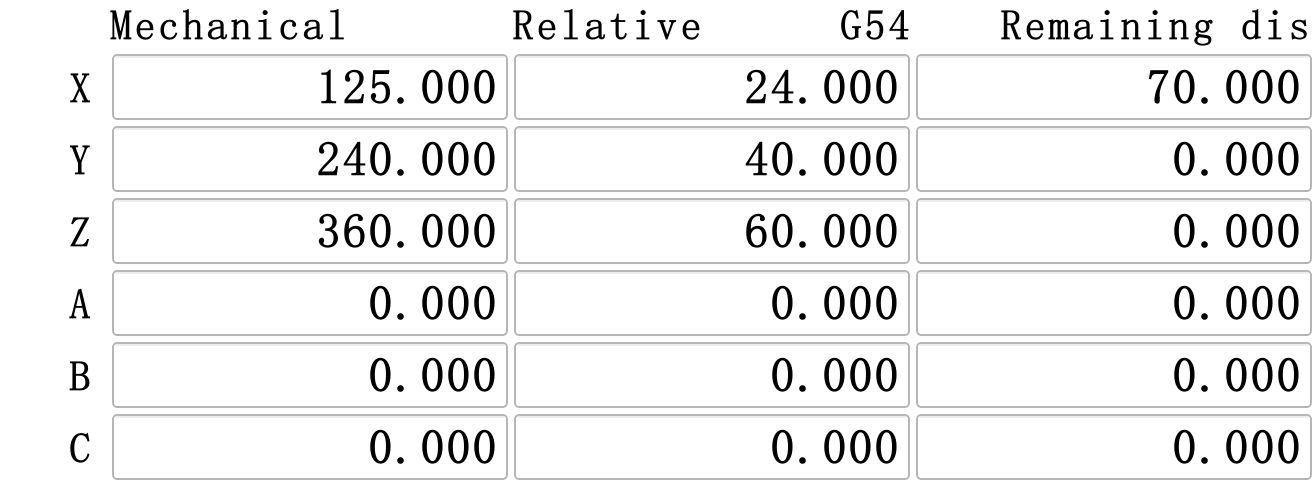
Click the screenshot to enlarge it. Full-resolution screenshots are included in the offline package.
These
#357items come from the program segment being executed: 134 maps to X displacement and 54 to its recorded X programming coordinate.#300.item[36]is X work display position. These values are supplied during operation; a custom page should read them rather than overwrite them as ordinary input parameters.The negative direction uses the other formula: displacement -100, the segment's X coordinate 10 and display position -20 give
-(-100)+(-20-10)=70. If the RTCP display condition is also true, the RTCP value takes priority, such as 12.500 in Figure 7. When designing several display choices, their condition order determines which one appears.10. Compare other axes and the other mode
All six axes reuse
#2502, with separate editing flags in#1006.item[0..5]. Their original fields and normal display expressions are:Axis / widget Normal display expression X / lineEdit_19#300_item6-#324_item8+#309_item0Y / lineEdit_20#300_item7-#324_item9+#309_item1Z / lineEdit_21#300_item8-#324_item10+#309_item2A / lineEdit_22#300_item33-#[301+#324_item4].item3-#308_item3-#308item9B / lineEdit_27#300_item34-#[301+#324_item4].item4-#308_item4-#308item10C / lineEdit_30#300_item35-#[301+#324_item4].item5-#308_item5-#308item11XYZ use work positions, tool compensation and G52 items. ABC use mechanical display positions minus the current work coordinate group and two sets of corresponding offsets in
#308. For G54,#324.item[4]=1, so301+1selects#302. Do not reduce every axis to one “mechanical minus G54” formula.The X files are
edit_x,edit_x_exit,edit_x_endandedit_x.nc; other axes use y, z, a, b and c suffixes. When adapting the design, check the widget, display formula, editing flag and target scripts together. Changing only the displayed axis letter is insufficient.The
#1006.item[6]=1branch in the confirmation script belongs to a different positioning path. The standardmainsets mode 0, which this chapter uses to set the coordinate of the current point. Keep that setting when following this design. A positioning feature needs its own operating entry, target position and supporting program; changing this single value is insufficient.11. Troubleshoot in this order
Observation or assumption What to check Clicking did not show zero Temporary parameters differ from screen text; focus protects editable text from refresh Display looks right, but Return writes the wrong place Check which -Tcandidate is active and whether it binds the temporary parameterEsc must behave exactly like leaving the field FocusOut can submit temporary input before calling the exit script -T2means two decimal places2 means real-number type; display handling and the unit setting determine decimal places Return means execution has finished Check submitted data and request first, then subsequent NC processing and completion Typing works, but Return does not change the coordinate Check whether the status reads Reset; release reset and wait until idle, then enter the value and press Return again; next check the NC file and execution messages A start condition always selects remaining distance RTCP has earlier priority, and simulation state also affects selection -Dmust continually replace typed textAlso check focus, read-only state and text selection The reusable idea is to arrange normal display values, text being edited and confirmed values separately, then connect the operations with short scripts.
Next, return to Program and follow File Management: how a selected file becomes program text and a machining-list entry.
Previous: Axis configuration · Next: File loading · Reading guide
在线咨询 - Download
