
- 首页
- About
- Products
- Download
- Support
- Applications
CNC Development Manual
How context menus and submenus are built
Download the bilingual offline manual (ZIP, 8.7 MB; original-resolution screenshots included)
The preceding chapter introduced a configuration menu by moving Deployment. This chapter follows the menu itself: where its labels come from, how submenu arrows appear, why some items are unavailable or absent, and how a selection passes its result to a script.
We continue with existing standard functions. The example selects InnerHole Probe from the right-hand control area's menu and assigns it to an existing empty position. It checks the assignment without clicking the probing button.
1. Start with the preceding single-level menu
Click the screenshot to enlarge it. Full-resolution screenshots are included in the offline package.
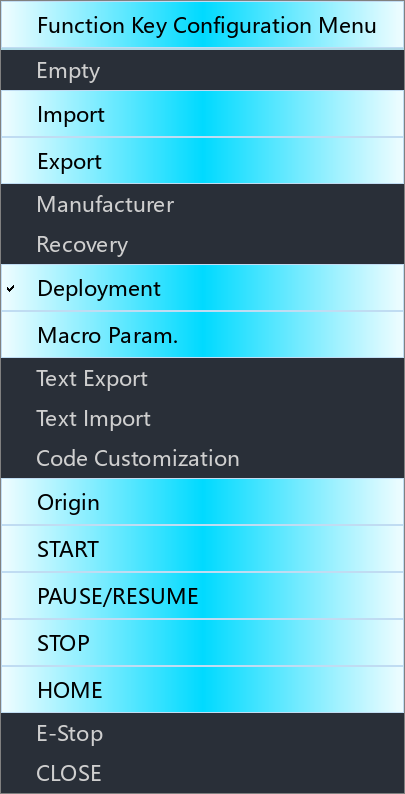
Figure 1. Function Key Configuration Menu, opened by right-clicking the original F5 Deployment button on Parameter. Its selectable functions are listed directly, without another level.
The important statement in the original entry script is:
widgetFunc["PopMenu","","",915]The last argument,
915, asks the application to build a menu from parameter#915. Menu entries primarily come from parameter items; a separate.uifile does not draw each of these rows.In the previous lesson, selecting Empty or Deployment called the existing
selmenufuncto change a button assignment. We now follow the same approach into submenus. This lesson leaves the original F5 assignment intact.2. Open the right-hand control area's menu
Click the screenshot to enlarge it. Full-resolution screenshots are included in the offline package.
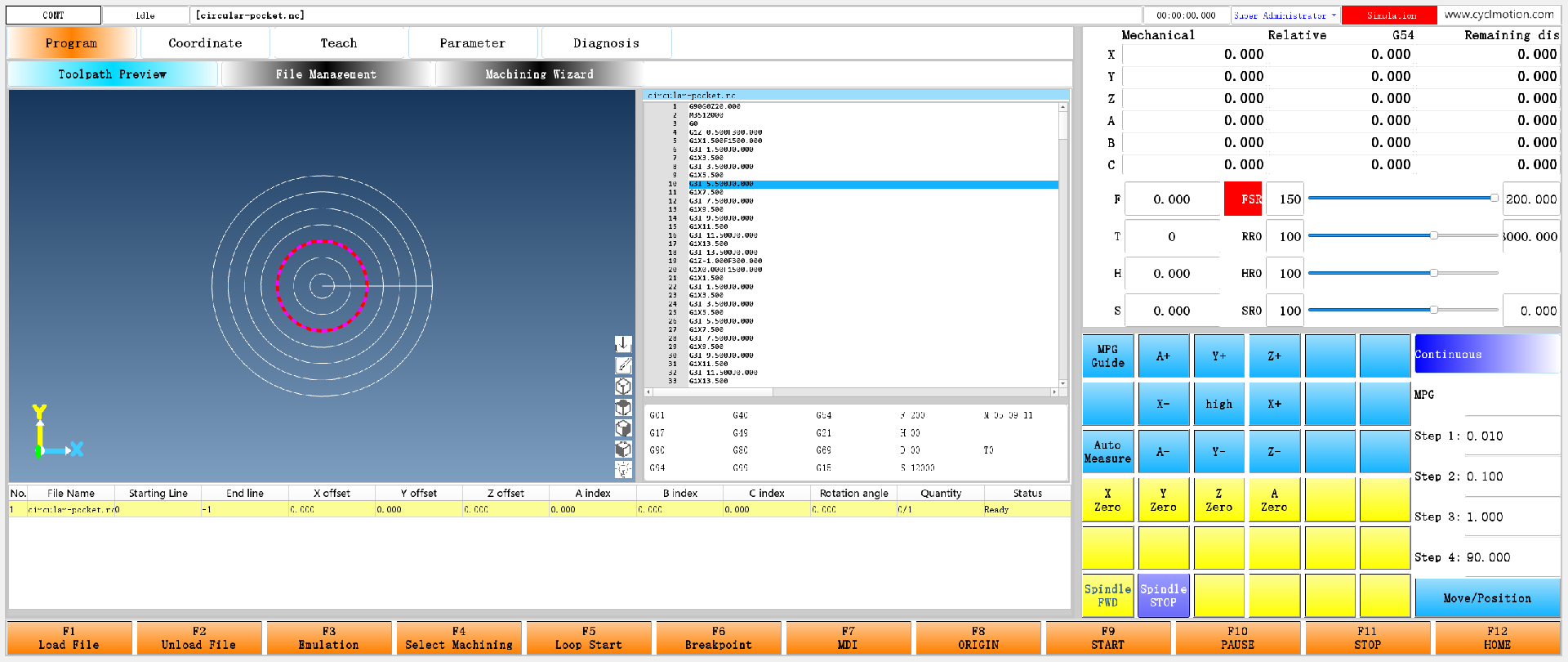
Figure 2. Start at the familiar Program → Toolpath Preview page. The left side shows an offline preview of the existing program; this lesson concerns the controls on the right. Their first row reads MPG Guide, A+, Y+, Z+, blank, blank. We use the fifth position.
In a practice copy, log in using the existing developer account so the top-right identity reads Super Administrator. Right-click the fifth blank position in the first row:
Click the screenshot to enlarge it. Full-resolution screenshots are included in the offline package.
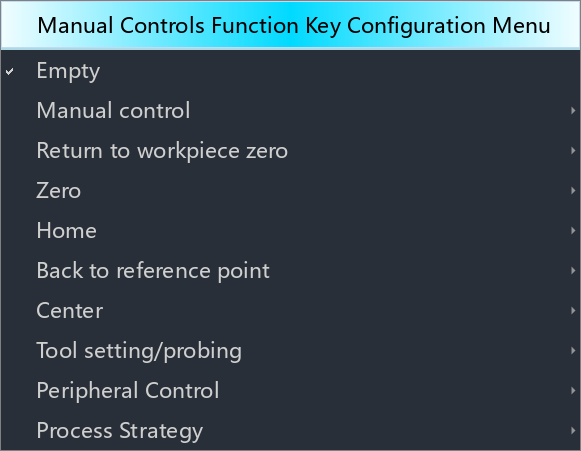
Figure 3. The actual heading is Manual Controls Function Key Configuration Menu. The check beside Empty indicates the position's current assignment. Arrows beside entries such as Manual control and Tool setting/probing lead to another level.
Expand Tool setting/probing:
Click the screenshot to enlarge it. Full-resolution screenshots are included in the offline package.
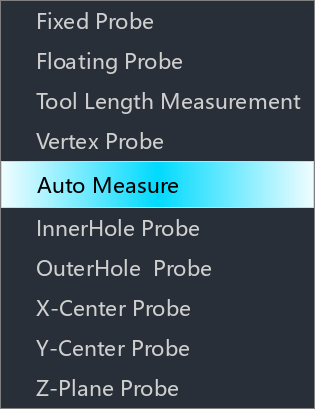
Figure 4. A direct native submenu capture. It displays InnerHole Probe on one line. The stored name contains a line break, which appears as two lines on the button.
Select InnerHole Probe to obtain this result:
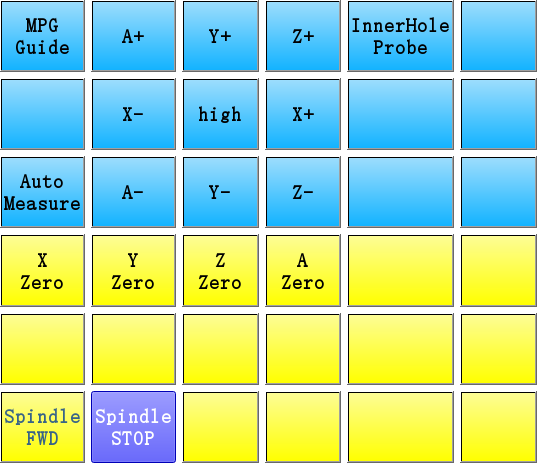
Click the screenshot to enlarge it. Full-resolution screenshots are included in the offline package.
Figure 5. The fifth position in the first row now displays InnerHole / Probe. This assigns an existing function; it neither defines a new probing method nor executes probing.
Stop at the result in Figure 5. Left-clicking the assigned button would enter the actual probing function. We do not perform that action here; the input window was explained in the parameter-window chapter. To restore the original layout, right-click this button and select Empty in the first-level menu.
The screenshots show the standard interface. Coordinates, filenames, and parameter values are examples; use the values appropriate to your configuration.
3. Find the entry script, then the menu parameters
Paths are relative to the runtime directory.
File or parameter What to examine env/maininterface/maininterface.uiExisting right-hand buttons and object names; this example uses ctrlButton5env/mainInitApplies the action and position attributes from #911to the right-hand buttonsenv/program/ctrlfuncmenuChecks developer identity and opens the first-level menu env/program/selctrlfuncmenuAssigns the selected function to the position that was right-clicked #910First-level menu; its main value temporarily holds the current function number #924Tool setting/probing submenu #911The 36 positions and existing function definitions; its main value temporarily holds the target position env/i18n/translatPack-0,translatPack-1Menu and function names in the two languages The fifth position is numbered
4. Its original position attributes are:-A: (rightClickedEvent:/env/program/ctrlfuncmenu[0](#911=4<<#910=#911item4)) -C(#911item4!=0||#1026item0==2) -VRight-clicking records
#911=4, copies the position's current function into#910, and runsctrlfuncmenu. The last two lines keep assigned positions visible; an empty position is visible to the developer identity for configuration.The complete
ctrlfuncmenuscript is:IF#1026.item[0]!=2GOTO1 widgetFunc["PopMenu","","",910] N1Compared with the previous chapter, the menu number changes from
915to910. The entry script supplies the permission check.PopMenudoes not automatically require developer identity for every menu.4. What the menu parameter fields do
These are the main fields this system's
PopMenureads. Relate them to the example first; you do not need to memorize the whole table.Field Menu use Example titleMenu title; when used as a submenu, this becomes its label in the parent menu #924.titleis Tool setting/probingdescriptionIf nonempty, the menu stylesheet; otherwise, the containing form's stylesheet is used Controls the original menu appearance itemnumNumber of parameter items defining the menu #924has 12 items, numbered0–11itemtitle[i]Name of an ordinary menu action Item 6 is InnerHole / Probe item[i]Interface attribute text, including checked, disabled, or visibility conditions Checks the current selection and existing assignments itemmin[i]Selects an ordinary action, separator, or submenu #910.itemmin[9]=924refers to the submenuitemunit[i]An ordinary action's icon filename and optional creation condition Icon filename followed by <<and a conditionitemdesc[i]Script path and preparation assignments for selection /env/program/selctrlfuncmenu<<#910=50itemversion[i]Script-call setting for an ordinary action 1here, calling a Qt configuration scriptThese fields follow the menu's rules here.
itemminis not an input minimum,itemunitis not a physical unit, anditemdescis not help text. Read them according to their actual use.An entry can override its displayed name using
-T(...)insideitem[i]. Otherwise, it usesitemtitle[i]. The example's function names come fromitemtitle, so an extra-Tdefinition is unnecessary.5. How an entry becomes a submenu
The controlling field is
itemmin:Value What the application creates 0An ordinary action that handles selection using its script definition Less than 0A separator Greater than 0Another menu, using that number as its parameter ID The first-level menu contains these actual values:
Field Current value Result #910.itemmin[1]-1Separator after the heading row; appearance follows the stylesheet #910.itemmin[2]0Ordinary Empty action #910.itemmin[3]919Manual control submenu #910.itemmin[9]924Tool setting/probing submenu #910.itemmin[11]926Process Strategy submenu #910.itemtitle[9]is currently empty, yet Figure 3 displays Tool setting/probing. A submenu entry takes its label from#924.title. Editing the empty parent-item name may therefore leave the visible label unchanged.Also distinguish a menu title from a heading row. The unselectable Manual Controls Function Key Configuration Menu at the top of Figure 3 is item 0, with these attributes:
-C(1)
-E0
The condition is always true, so this row is disabled. Setting
#910.titledoes not automatically create this extra row; the configuration explicitly defines item 0.Menus can have further levels. In the existing configuration, item 11 of
#910refers to#926, and#926.itemmin[9]refers to#950. The latter retains a Chinese title for axis-mapping multi-face machining. Its parent entry requires#929item7==1; the loaded value here is0, so this path is not expanded in the screenshots. We did not enable the feature for illustration. The current English language pack also does not assign English names to this#950group, so a newly translated label must not be presented as existing English UI wording.Each submenu should refer to the correct separate menu parameter. The current construction code does not detect circular references back to the same menu or an ancestor. Do not create such references.
6. Read the complete InnerHole Probe entry
This entry is item
6in#924. Its existing definition is:Field Current contents #924.itemtitle[6]InnerHole, a line break, thenProbein English; the corresponding Chinese wording in the Chinese pack#924.itemmin[6]0, an ordinary action#924.itemunit[6]Empty: no icon or additional creation condition #924.itemdesc[6]/env/program/selctrlfuncmenu<<#910=50#924.itemversion[6]1The original attribute text in
#924.item[6]is:-C(#910==50) -R0 -C(#911item0==50||#911item1==50||#911item2==50||#911item3==50||#911item4==50||#911item5==50||#911item6==50||#911item7==50||#911item8==50||#911item9==50||#911item10==50||#911item11==50||#911item12==50||#911item13==50||#911item14==50||#911item15==50||#911item16==50||#911item17==50||#911item18==50||#911item19==50||#911item20==50||#911item21==50||#911item22==50||#911item23==50||#911item24==50||#911item25==50||#911item26==50||#911item27==50||#911item28==50||#911item29==50||#911item30==50||#911item31==50||#911item32==50||#911item33==50||#911item34==50||#911item35==50) -E1The long condition simply checks all 36 positions for function 50. Understand its first two comparisons, then follow the same pattern through the remaining positions:
- When the first condition is true,
-R0checks the entry: the position being configured currently uses this function. - When the second condition is true,
-E1disables the entry: some position already uses this function.
After assignment, right-clicking the same button shows this function checked and unavailable for repeated selection. Right-clicking another empty position shows it unchecked but still unavailable because it is already assigned. Both cases were checked in the native menus.
There are three different numbers in this example:
Number Meaning 4Position of the fifth button 6Original item number in the Tool setting/probing menu 50Function number for InnerHole Probe They need not match. Use function 50 to find the action, menu item 6 to find the name, and position 4 to find the button to update.
7. Absent, unavailable, and checked mean different things
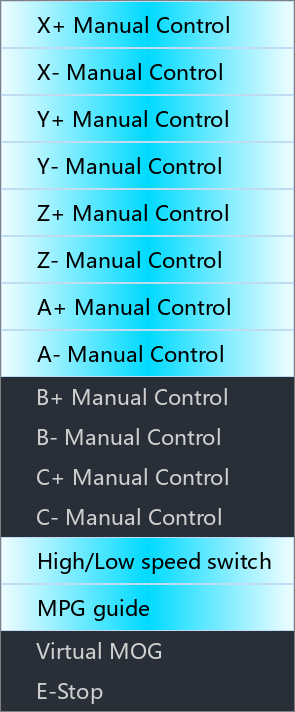
Click the screenshot to enlarge it. Full-resolution screenshots are included in the offline package.
Figure 6. Manual control opened from another empty position. The loaded configuration already places the relevant X/Y/Z/A functions on the panel, while the B/C entries are unassigned. This indicates function assignments, not axes currently moving.
State How this menu implementation produces it Visible result Entry not created The condition after <<initemunitis falseNo row for that entry Created action hidden An ordinary action uses -C(...)with-Vor-Vplus a condition numberAction is not shown; the parameter item still exists Selection disabled The condition identified by -Eis trueLabel remains, but the action cannot be selected Current selection checked The condition identified by -Ris trueA check mark beside the label The
1in-E1identifies a condition, not a function or menu row.-Rcontrols menu checking here; an input widget's read-only interpretation does not apply. The original stylesheet may give disabled entries a bright background, so brightness alone is insufficient.An existing creation condition is the full contents of
#919.itemunit[0]:<<#912itemmax0==1The empty part before
<<means no icon. The condition after it determines whether X+ Manual Control is created. Item 1, X- Manual Control, uses the same condition.In the isolated check, temporarily changing the value read by this condition from
1to0and reopening the menu omitted both X entries. Restoring it to1and reopening restored them; other axes' entries remained. This is an in-memory verification comparison, not an instruction to alter machine-axis configuration for a menu exercise.The first-level ATC branch is another example:
#910.itemunit[12]contains<<#901item0!=0. The loaded tool-magazine type is0, so Figure 3 omits this branch.The submenu in Figure 4 defines 12 items but currently shows 10; two are filtered by their own conditions. Counting visible rows does not give the original parameter item number. Hidden entries do not renumber
#924.itemdesc[6].PopMenuconstructs the menu and checks conditions each time it opens. Close and reopen after changing names or creation conditions. Do not interpret-Das continuously rebuilding every entry while a popup remains open.8. Where icons, names, and appearance belong
The current example does not assign menu icons. The source supports these locations:
Object Setting Reading rule Ordinary action icon Text before <<initemunit[i], or the whole field when<<is absentFile is read under the runtime directory's images/folderOrdinary action creation condition The part after <<in the same fieldWithout <<, this extra condition is absent; the icon part may be emptySubmenu-entry icon The submenu parameter's own unit, such as#924.unitAlso read from images/Submenu name The submenu parameter's titleTool setting/probing in Figure 3 comes from #924.titleOrdinary action name itemtitle[i], or text supplied by its-T(...)Language packs can assign different labels to the same field Menu stylesheet The menu parameter's descriptionUsed when nonempty; otherwise the containing form's stylesheet is used For a parent entry pointing to a submenu, the parent's
itemunitcan still control whether the branch is created, but its icon is read from the submenu's ownunit. Changing only the parent's icon text does not follow the ordinary-action rule in this case.Icon loading and text-override rules are confirmed from source; this lesson does not add icons or rename entries for its screenshots. Referenced files should accompany the configuration resources, with their actual existence checked.
9. How a selection passes a number to a script
The entry's original selection definition is:
/env/program/selctrlfuncmenu<<#910=50Before
<<is the selection script path; after it is an assignment evaluated before that script is called. Right-clicking already recorded#911=4. Selecting the menu entry now sets#910=50. The complete original script then contains:#911.item[#911]=#910 widgetFunc["setWidgetAttribute",#911.itemtitle[#911],"",#911.itemdesc[#911.item[#911]]+#911.itemunit[#911]]Substituting the example values gives:
Order Change 1 Writes 50into#911.item[4], recording the function at the fifth position2 Finds ctrlButton5, named by#911.itemtitle[4], and applies “function 50 attributes + position 4 attributes”The new button therefore receives the existing function's name and actions while retaining right-click configuration. This script does not update the F1–F12 records in
#9995, unlike the preceding chapter's four-line Parameter script.The entry's
itemversion[6]=1is its Qt-script call setting. Do not confuse it with[1]in a button event path:Menu itemversionRequested script category 0NC 1Main Qt 2Auxiliary Qt 3Tool Qt The actual Qt call also depends on the containing form and interpreter availability. Retain the existing
1here; changing it to NC does not make it a faster configuration call. An ordinary menu action takes its call definition fromitemdesc: construction clears events parsed fromitembefore adopting this path.PopMenuwaits for menu interaction to end, but this branch queues the selection-script call. Menu closure alone does not establish that code immediately afterPopMenuwill run after the selection script finishes. The standard design puts the update insideselctrlfuncmenu, with the required numbers prepared before the call.10. Separate assigning the probing button from executing probing
The menu selection is now complete. The actual probing entry is in the existing
#911.itemdesc[50]:-T(#924itemtitle6) -D -C(#319item3==1) -E0 -A: (clickedEvent:customprobe/centerprobing.nc[2])It displays the corresponding menu name and defines a click that calls the probing NC. Here,
[2]in the button event path means the NC channel. It governs a different operation from the menu'sitemversion=1.Trace the two paths separately:
User operation Call path Exercised here? Select InnerHole Probe in the submenu Prepare function number → selctrlfuncmenu→ configure buttonChecked locally Left-click the assigned probing button Button click event → customprobe/centerprobing.ncNot executed This connects chapter 4's input window, chapter 5's function panel, and this menu chapter: an existing probing function can be selected in the menu, assigned to a button, and later entered through that button for its inputs and actions.
center-installhelps trace the original name and action definitions, but it is a leftover from an earlier component deployment and is no longer called. Current menus use loaded parameters and the active language pack. Editing that historical file does not automatically update the next menu opening.11. How to inspect an existing menu before changing it
Follow this order before deciding what to edit:
- Find the entry. Follow the button event to its script and identify the
PopMenuparameter number. If nothing opens, check the entry permission first. - Follow submenu references. Read the parent's
itemminto locate the child parameter. Visible submenu names may not be stored in the parent table. - Identify the original item number. Match its name, conditions, and selection definition by that number, without renumbering visible rows.
- Identify the intended change. Names involve title fields and language packs; availability involves conditions; selection results involve
itemdesc; actual business actions require following the function definition further. - Check the related records. This example joins menu 924 item 6, function 50, and position 4. Changing one number does not automatically update the others correctly.
- Reopen and inspect. Check names, levels, omitted entries, checks, and availability. Then check the changed parameter, button caption, and events. Verify saving and restarting separately as part of the delivery process.
Common symptoms point to these checks:
Symptom Check first No context menu opens Button visibility and enabled state, retained right-click event, and the entry's identity check Editing the parent name does not change a submenu label The child menu parameter's titleA separator becomes a clickable blank row Whether itemminremains below 0An item exists in the parameters but not in the menu The itemunitcreation condition and any-Vcondition on the ordinary actionAn item is shown but cannot be selected Which condition -Ereferences and whether the function is already assignedSelection changes the wrong button The position prepared on right-click and any script overwriting it before selection A click event was written but menu selection does not call it Ordinary menu actions use itemdescanditemversion; a button event definition alone is insufficientAn icon is missing Ordinary-action versus submenu icon fields, and the actual file under runtime images/Chinese names changed but English names did not Whether the corresponding language pack overwrites the same title field Expected data is unavailable immediately after menu closure Whether follow-on work belongs inside the selection script instead of depending on the line after PopMenuNext, follow main-screen axis configuration: selecting an axis changes a shared flag that also controls visibility of its coordinate row.
Previous: Function-key configuration · Next: Axis configuration · Reading guide
在线咨询 - Download
