
- Home
- About
- Products
Motion controller
CM600 RTCP 6-Axis Motion controll
CM300 R 3-Axis Motion controller
CM300 3-Axis Motion controller
- Download
- Support
- Applications
CNC Development Manual
Starting, pausing, resuming and stopping a loaded program
Download the bilingual offline manual (ZIP, 8.7 MB; original-resolution screenshots included)
The previous lesson selected an NC file in File Management and prepared its program text and machining list. This lesson follows what happens after a button is pressed: which screen script runs, which NC files run next, and how the interface shows the resulting state. The later Teach lessons send generated NC code to this same machining framework.
First follow the standard screen, then read the short scripts behind it. The variables, conditions and subprograms familiar from CNC programming also arrange preparation and finishing actions, button text and operating conditions.
1. Locate the existing buttons
Open Program → Toolpath Preview. The screen below has a circular-pocket program loaded as
circular-pocket.nc. Use a software copy disconnected from the controller and the Emulation button for this exercise. Its motion and spindle commands are for observing simulation, not operating a machine.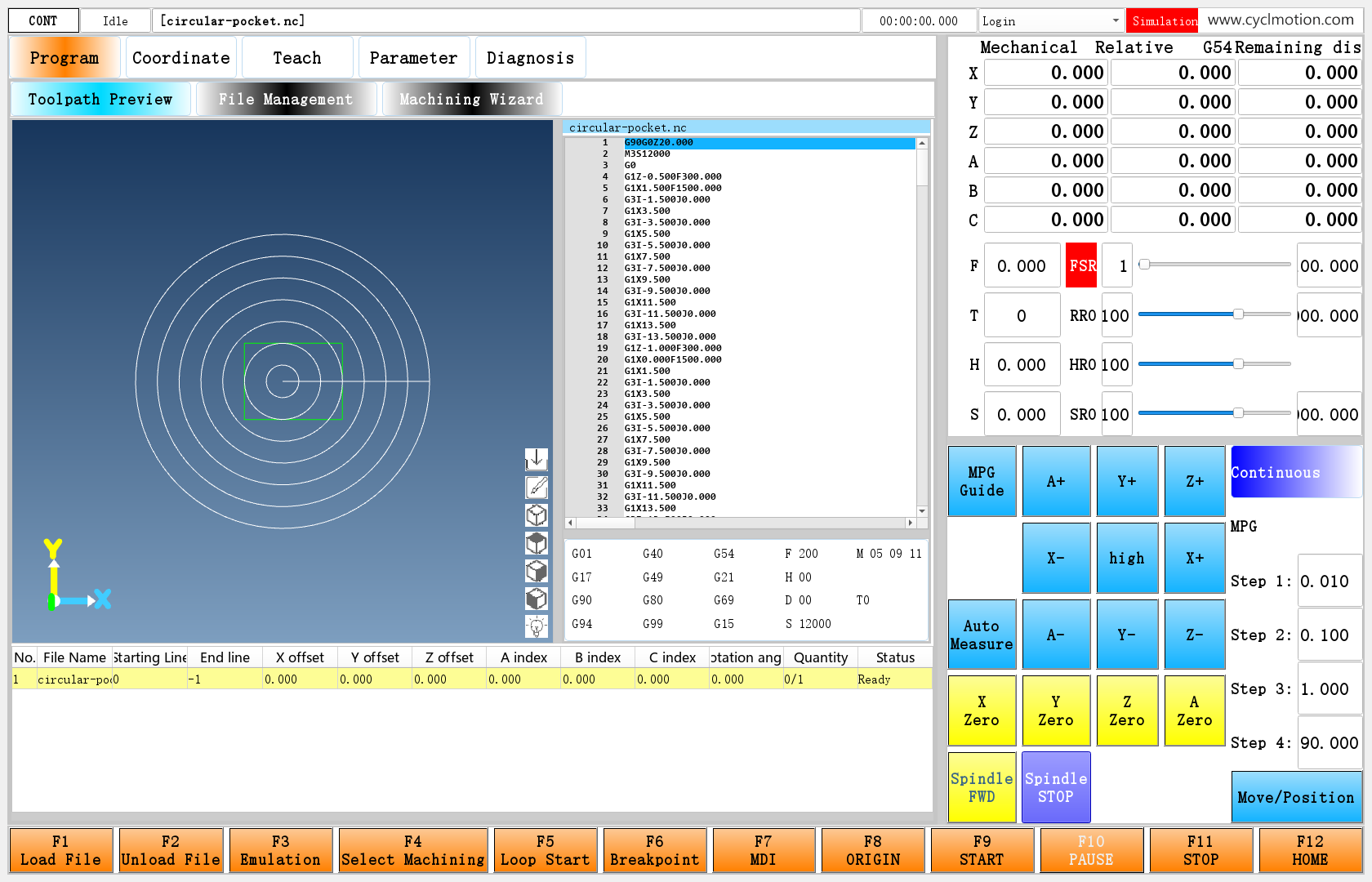
Click the screenshot to enlarge it. Full-resolution screenshots are included in the offline package.
This page uses the following keys. Their positions come from the current standard function-key configuration; after a panel is reconfigured, locate them by function name.
Position on this page Button label Operation F3 Emulation Select simulation, then enter the start script F9 START Select actual machining, then enter the same start script F10 PAUSE / RESUME Request a pause while running; resume from the interrupted point once pause processing has finished F11 STOP Request a stop; release reset if already in reset state 
Click the screenshot to enlarge it. Full-resolution screenshots are included in the offline package.

Click the screenshot to enlarge it. Full-resolution screenshots are included in the offline package.
The button is labelled Emulation, while the upper-right status label reads Simulation. These are the existing English interface labels.
Load File and Load Code prepare which program to use. Emulation and START select how to run the selected program. Seeing code or a toolpath does not mean that machining has started.
2. How one start script serves simulation and machining
In the main interface's function definitions, both buttons call
/env/start[1], with different assignments before the call. These are the mouse-event entries:-A: (clickedEvent:/env/start[1](#319item11=1<<#333item13=1<<#319itemversion11=#331item30))This is Emulation. It sets
#319.item[11]to 1 and the requested count to 1 before runningstart. The<<separators divide statements executed before the script call.-A: (MouseButtonRelease:/env/start[1](#319item11=0<<#333item13=1))This is START. The same simulation field is set to 0 for actual machining.
#319item11and#319.item[11]are two parameter notations used here.[1]selects the execution channel for the screen script. It is neither a machining count nor “NC subprogram 1.” The screen script passes operating conditions and a file to the NC execution part. NC execution can continue after the screen script returns. Placing “machining completed” handling immediately after that call would therefore use the wrong timing.Keep this short reference available for the following sections:
Parameter Role in this flow #319.item[1]Request reset / stop #319.item[2]Request pause #319.item[3]NC interpreter is started #319.item[4]Use macro parsing for the machining file; the standard start flow selects this from its filename #319.item[6]Reset state #319.item[7]Pause state #319.item[9]Start with resume processing #319.item[10]Use MDI-file execution #319.item[11]Simulation mode A request and its resulting state are stored separately. For example, the button requests a pause; NC processing then establishes the paused state. Reuse the original operation scripts when configuring buttons. This table is not a procedure for changing the states directly.
3. start checks conditions and prepares the selected files
The first checks in
env/startare:IF#9997!=" " GOTO2;存在告警状态时退出 IF#319.item[6]==1 GOTO2;复位状态下退出 IF#319.item[3]==1 GOTO2;解释器处于启动状态退出The original comments mean: exit on an alarm, on reset, or when the interpreter is already started. The no-alarm marker checked here is a single space in
#9997. A button appearing available does not mean these script checks have passed.The script also handles MPG guidance, homing checks and confirmation messages. The start-time homing check considers whether an axis is enabled, whether that axis has a homing method, and the system setting. Simulation skips this check. Do not remove the conditions merely to make a program start.
Next it prepares the files for this run.
#334stores the displayed files and their machining settings, using 20 fields per file.#335stores the selected file-group numbers:#335.itemnum=0;清除当前加工序列 #2500=0;临时变量,计数器 WHILE#2500<#334.groupnum DO1;依次对加工序列元素进行判别 IF#334.item[#2500*20]==0GOTO3;判断加工序列元素是否选中,对于每个加工序列都有20个元素项 #335.item=#2500;如果选中,添加到当前加工序列中 N3 #2500=#2500+1;计数器递增 END1 #335=0;选中当前加工序列第一项The script clears this run's list and checks groups starting at group 0. Field 0 of each group indicates selection. Selected group numbers are appended to
#335; finally,#335is set to index 0 of the new list.One useful notation appears here:
.itemwithout an index appends when assigned to, and reads the current item when used as a value. If groups 0 and 2 are selected,#335contains 0, 2. With#335=1, reading#335.itemreturns 2, pointing to the third group in the original list. This example explains indexing; it does not require manual parameter changes.4. Why safez.nc runs before the machining file
At the end, the start script prepares the NC entry point:
#404.value="safez.nc"
(#319.item[11]=1;仿真)
#319.item[10]=1;MDI
#319.item[9]=0;取消恢复加工
#319.item[3]=1;解释器启动
#319.itemversion[3]=1;启动标识
#319.itemversion[4]=1;主轴启动标识
The parenthesized simulation statement is an original comment. It does not force an actual machining start into simulation. Here, MDI-file execution runs a preparation file; the operator does not have to open the MDI input window.
File or parameter Responsibility #404The MDI filename to run, initially safez.nc#405Directory containing these NC files env/safez.ncCheck the current list item, select the machining file and prepare for machining #403Path of the current machining file env/end.ncHandle normal completion of one file, advance the list and update counts For the ordinary NC file used here, the normal sequence is:
startbuilds the list and schedulessafez.nc.safez.nctakes the current filename from#334, writes it to#403and applies preparation settings.- NC processing runs that machining file.
- Normal file completion leads to
end.nc, which advances#335. safez.ncruns again: it prepares the next item, or finishes the sequence if no next item remains.
The name
safez.ncshould not be read simply as “raise to a safe Z.” The file also selects programs, confirms whether a start is valid, calls preparation subprograms and handles the end of the list.The software's built-in NC scheduling switches between these stages. It recognizes the filenames
safez.nc,end.nc,pause.ncandrtnbreak.nc. Their preparation and process actions are configurable macros, but renaming the files does not make the software automatically discover new entry points.
Click the screenshot to enlarge it. Full-resolution screenshots are included in the offline package.

Click the screenshot to enlarge it. Full-resolution screenshots are included in the offline package.
See the next lesson on progress, prompts and alarms for the progress area's display rules. Machining-file line progress and interpolation-buffer occupancy during MDI stages have different meanings; neither should automatically be treated as the percentage of the entire workpiece completed.
4.1 Scan the structure before running a file with loops and branches
The circular-pocket example above already contains individual motion blocks. If a file retains logic such as
WHILE…DO…ENDorIF…GOTO, conditions change the execution order and the same code may run repeatedly. Use macro parsing for this kind of machining file. The usual filename convention is a lowercasemacroprefix, as in the standardmacroMillRect.nc.safez.ncchecks the filename with this statement:IF[#403/"/"]>"macro" GOTO10Here
/"/"takes the filename after the last slash in the path. For strings,>"macro"checks whether it containsmacro. The following branch sets#319.item[4]to 1 on a match, or 0 otherwise. Use themacroprefix consistently; the current standard script actually tests for “contains macro.” It checks the filename, not the first line of NC content.Starting a macro file from its normal beginning follows this sequence:
- Run
safez.ncto select the machining file and macro parsing. - Scan the complete machining file's structure, recording program blocks, N labels and loop boundaries.
- Execute the program: calculate variables, choose branches, repeat loops and generate the corresponding movements.
- On normal completion, continue through
end.ncand the remaining list processing.
Structure scanning first records where jump targets and loop boundaries are located. It does not machine the workpiece through all loop iterations in advance. Conditions decide which branch to take and whether a loop continues during the subsequent execution stage.
Comparison Ordinary toolpath file macromachining fileMain use Run expanded motion blocks, such as sequential CAM output Retain loops, branches and parameter calculations in the machining file Preparation Normally enter file execution directly Scan program structure before executing macro logic Execution order Mainly follow the file's motion sequence Jump according to conditions or repeatedly execute a loop body Resume after pause Restore the saved file position and operating state Reinterpret earlier macro logic to locate the interrupted execution position An ordinary file can also use supported variable expressions or call an already-loaded NC macro library. The presence of
#alone therefore does not decide whether a filename needs the macro convention. The distinction here concerns control structures within the machining file, preparation scanning and the resume method.Two existing entry paths are separate. MDI files already receive macro scanning and execution, so
safez.ncandpause.ncneed nomacroprefix. The ordinary machining branch also retains a structure scan when the path containsprogram; the standard Teach outputprogram.ncencounters this rule. That rule does not switch the machining file to#319.item[4]=1. Having a structure scan and using macro-file resume are not equivalent.5. PAUSE first submits a request
Both PAUSE and the later RESUME label use
env/pause. Its opening three lines handle a click while running:IF#319.item[3]==0GOTO1 #319.item[2]=1 GOTO2If the interpreter is running, the script sets the pause request to 1 and exits. It does not directly clear the started state, nor treat the position at the instant of the click as the final stopping position.
NC processing accepts the request, preserves the program position and operating information needed to continue, and schedules
env/pause.nc. That NC file handles retreat, spindle and coolant according to machine type and settings. A controlled retreat can still occur after PAUSE is pressed; wait for pause processing to finish.For the ordinary three-axis branch used here, the tool-axis and direction settings choose the retreat direction;
#330.item[49]supplies its distance. RTCP and other machine types have different branches. Do not copy a three-axisG91G0Z...retreat into every machine configuration.6. Recognizing when resume is available
Once pause processing finishes, the original F10 button changes from PAUSE to RESUME:

Click the screenshot to enlarge it. Full-resolution screenshots are included in the offline package.
The started state is now 0 and the pause state is 1. The upper status field can nevertheless read Idle:

Click the screenshot to enlarge it. Full-resolution screenshots are included in the offline package.
The two controls check different conditions. The upper Idle condition only checks that execution is not started and reset is inactive. F10's text also checks pause state.
Settled state Started item[3]Reset item[6]Paused item[7]Appearance on this page Not started, or normally completed 0 0 0 Idle; PAUSE unavailable Machining file running 1 0 0 START unavailable; PAUSE available Pause processing completed 0 0 1 Upper field can show Idle; F10 shows RESUME Reset after stopping 0 1 0 Reset; PAUSE unavailable These are common settled states. Preparation, pause processing and resume preparation also have transitions. Do not substitute an instantaneous reading of one field for the full state.
7. Why resume needs rtnbreak.nc
Press F10 again, now labelled RESUME. It enters the same
env/pausescript but takes theN1branch. The script checks alarms, pause and reset, followed by the homing conditions for resume. Simulation can pass into the resume branch. For actual machining, the original script checks the X, Y, Z and A homing flags or the permission condition in#355.item[0]. This differs from the individual-axis checks instart; read the two separately.For the ordinary NC file in this lesson, the script schedules
rtnbreak.ncand sets the resume state. The complete NC file is:M98P8000O8000, inenv/slib.nc, uses information preserved at pause to restore the tool, relevant outputs and position. Its movement branch depends on machine type, RTCP, tool-axis direction and related settings. Afterward, NC processing restores the original program position and operating information, then continues the machining file.Read the sequence as: check whether resume is allowed → perform resume preparation → return to the interrupted machining position and state → continue the original program. If pause processing has retreated the tool, resume preparation must not be omitted.
Click the screenshot to enlarge it. Full-resolution screenshots are included in the offline package.
Macro-file resume first locates the interrupted loop execution
One file line can execute many times within a loop. An X-traverse statement inside a loop has the same text location on its first and fifth execution, but the remaining count, direction and machining layer may differ. Resume must identify which execution was interrupted.
The resume branch in
env/pausechecks#319.item[4]. An ordinary file schedulesrtnbreak.ncdirectly; a macro file first returns to macro interpretation. Using the saved execution position, it scans the structure again and interprets the earlier logic from the beginning to reconstruct the values and state needed at the interrupted point.Interpreting from the beginning does not mean physically repeating the already-machined path. While locating the resume position, earlier motion blocks are kept out of the actual motion queue. Once the continuation point is found, internal scheduling arranges the return preparation in
rtnbreak.nc, then continues machining. Macro-file resume can therefore also pass throughrtnbreak.nc; its order differs from ordinary-file resume.Write earlier parameter calculations and branches so that reinterpretation can produce consistent results. While paused, do not change the machining file or the inputs that determine its loops and branches. A cumulative counter assigned again during reinterpretation must not be treated as a completion action that runs only once. Choose completion-count locations using the normal-ending flow in the next section.
8. Where preparation and finishing actions belong
Allow the program to finish. After the selected list has been processed, execution leaves the started state and the interface returns to idle:
Click the screenshot to enlarge it. Full-resolution screenshots are included in the offline package.
The standard files already provide four NC subprogram call locations:
Subprogram Called from When to use this location O6100safez.ncA valid list item enters preparation with #319.itemversion[4]=1, for example at a new start or another roundO6101safez.ncBefore the current valid list item is machined O6102end.ncAfter normal completion of the current file O6103end.ncAfter the selected file list completes a round Their files are
env/slib-6100.ncthroughenv/slib-6103.nc. For example, the complete originalslib-6102.ncis:O6102 M99It currently contains only a return, but its call location is already established. These locations distinguish “once per completed file” from “once per completed round.” When adding machining counts or process actions later, choose the appropriate location first, then write the required macro statements. Do not place every action in the START button.
The resume script also sets
#319.itemversion[4]again. WhetherO6100runs therefore depends on the marker when a valid list item enterssafez.nc; do not assume it runs exactly once for an entire operation.end.ncalso increments the completed-round count and returns#335to 0 when the loop condition is met. A list can contain multiple files, and one operation can run multiple rounds. File count, round count and accepted-workpiece count need definitions appropriate to the process.9. Why STOP differs from normal completion
Start another simulation and press STOP while it runs. The request exits the current machining operation. The following images show the reset state after stopping:

Click the screenshot to enlarge it. Full-resolution screenshots are included in the offline package.

Click the screenshot to enlarge it. Full-resolution screenshots are included in the offline package.
The complete
env/stopscript is:IF#319.item[6]==0GOTO1 #319.item[1]=0 #319.item[6]=0 GOTO2 N1 #319.item[1]=1 #319.item[7]=0 #319.itemversion[1]=1 N2If reset is inactive, it goes to
N1: request a stop, cancel pause and set the soft-stop marker. If reset is already active, the first branch releases the request and reset state. The standard timer script can also release a soft stop automatically when its device-state and buffer conditions are met, so the actual screen need not remain in the state shown in Figure 10.Interrupting a file with STOP is different from reaching its normal end. Do not treat
end.nc,O6102orO6103as handling that every stop or alarm must pass through. This lesson's RESUME button does not continue a stopped operation. To preserve an interrupted position for continuation, use the pause flow described earlier.10. What reset and reset.nc each do
env/resetis another screen script. Its complete content is:IF#319.item[6]==0GOTO1 #319.item[1]=0 #319.item[6]=0 #319.item[7]=0 GOTO2 N1 #319.item[1]=1 #319.item[7]=0 N2Compared with
stop, it does not set#319.itemversion[1]=1when requesting reset, and its reset-release branch also clears pause. The two scripts are not interchangeable merely because their names are related. Nor isreseta one-way “always enter reset” operation: it checks the current reset state too.env/reset.ncis an NC file. The standardenv/timerdetects reset changing from 1 to 0—reset being released—and requests execution of this file. It is not the immediate next statement after pressing STOP, and its name does not cause it to run automatically on entry to reset.Click the screenshot to enlarge it. Full-resolution screenshots are included in the offline package.
This describes software stop and reset. Emergency stopping and equipment-output handling also depend on the controller and machine configuration; a screen button does not replace the machine's emergency-stop design.
11. How one button changes its text and availability
These are the key lines in the F10 function definition:
-C1,1(#319.item3==0&Ŀitem7==1) -C0,0(1)The first condition selects the resume style and text when execution has stopped in pause state. Otherwise the ordinary pause style and text are used. The two following
-Tentries take PAUSE from#1101.itemtitle[2]and RESUME from#1101.itemtitle[3]. Each prefixes the current key name and separates the key name from the function label with a line break.The following condition and
-E2determine availability. For example, the control is unavailable when idle without a paused operation, and provides its corresponding action during ordinary execution or after pause processing. Text, colour, availability and the script to execute are separate parts of one function definition.The panel position is determined by the
#913/#914function configuration and assembly inmainInit; see the function-key lesson. To change a position, inspect the panel configuration. To change wording, inspect language parameters. To understand pause actions, inspectenv/pauseandenv/pause.nc.12. Using this sequence in later configuration work
Use the following order to investigate an existing function:
Question Where to look first Which button was pressed, and what was assigned before the call? Main-interface function definition and function-key configuration Why is starting or resuming refused? Conditions in env/startandenv/pauseWhich files run this time? Original list #334and selected list#335What happens before and after machining? safez.nc,end.ncandO6100–O6103How does pause retreat and resume return? pause.nc,rtnbreak.ncandO8000How are stopping and reset release handled? stop,reset,timerandreset.ncWhy is this text displayed? Control conditions, language parameters and current state Common problems follow the same sequence:
- A toolpath is visible but the program will not start: check file selection, alarms, reset and homing conditions. Previewing is not starting.
- The upper field reads Idle after pausing: check whether F10 has changed to RESUME; Idle alone does not mean the workpiece is complete.
- Other actions occur before machining resumes: inspect retreat and resume preparation. Position and relevant state need to be restored.
- The end-of-machining macro did not run after STOP: stopping interrupts execution; normal-completion subprograms cannot handle every fault.
- The screen script returned but the program is still running: submitting the request and finishing NC execution are separate moments.
No changes to these operating files are needed for this lesson. First understand the complete sequence—button operation, screen-script checks and preparation, ordered NC execution, and state reflected on the screen—then choose a suitable place for your own process actions.
Previous: File loading · Next: Progress, prompts and alarms · Reading guide
Online - Download
